FLOW CAPTURE FOR IPHONE

Capture the journey.
Keep the context.

Turn an iPhone recording into ordered screens, contextual feedback, and a handoff your designer or coding agent can use.

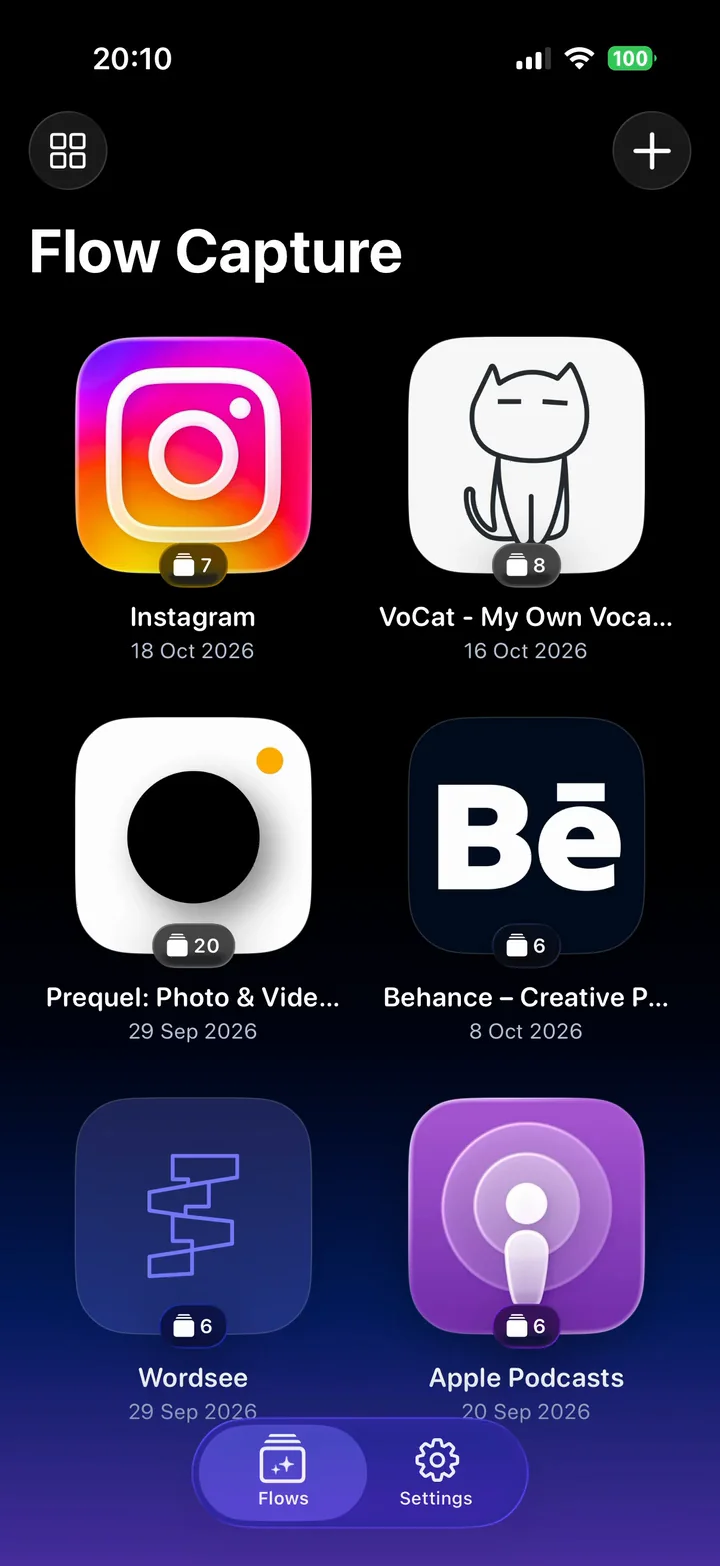
Flow Capture demo: recording an iPhone journey, reviewing its screens, and preparing an AI handoff.
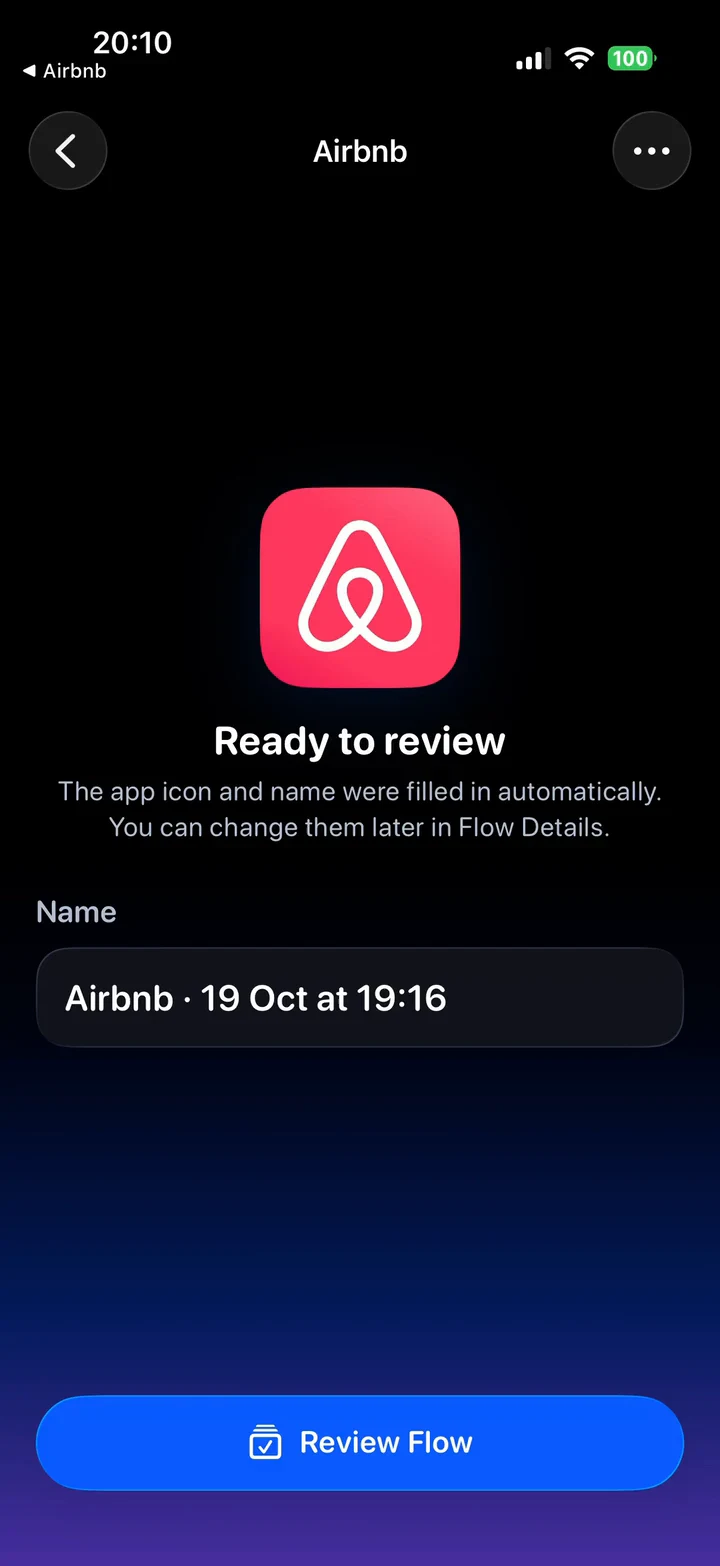
Recording an iPhone journey and preparing its screens for review.

Capture

From recording
to a clear flow.

Record a journey through an iPhone app, or bring a recording you already have. Review the useful screens in the order they happened.

  • Record on iPhone
  • Import a recording
  • Keep the useful screens
  • Review in sequence
Explore the recording guide

Comment

Your voice.
In context.

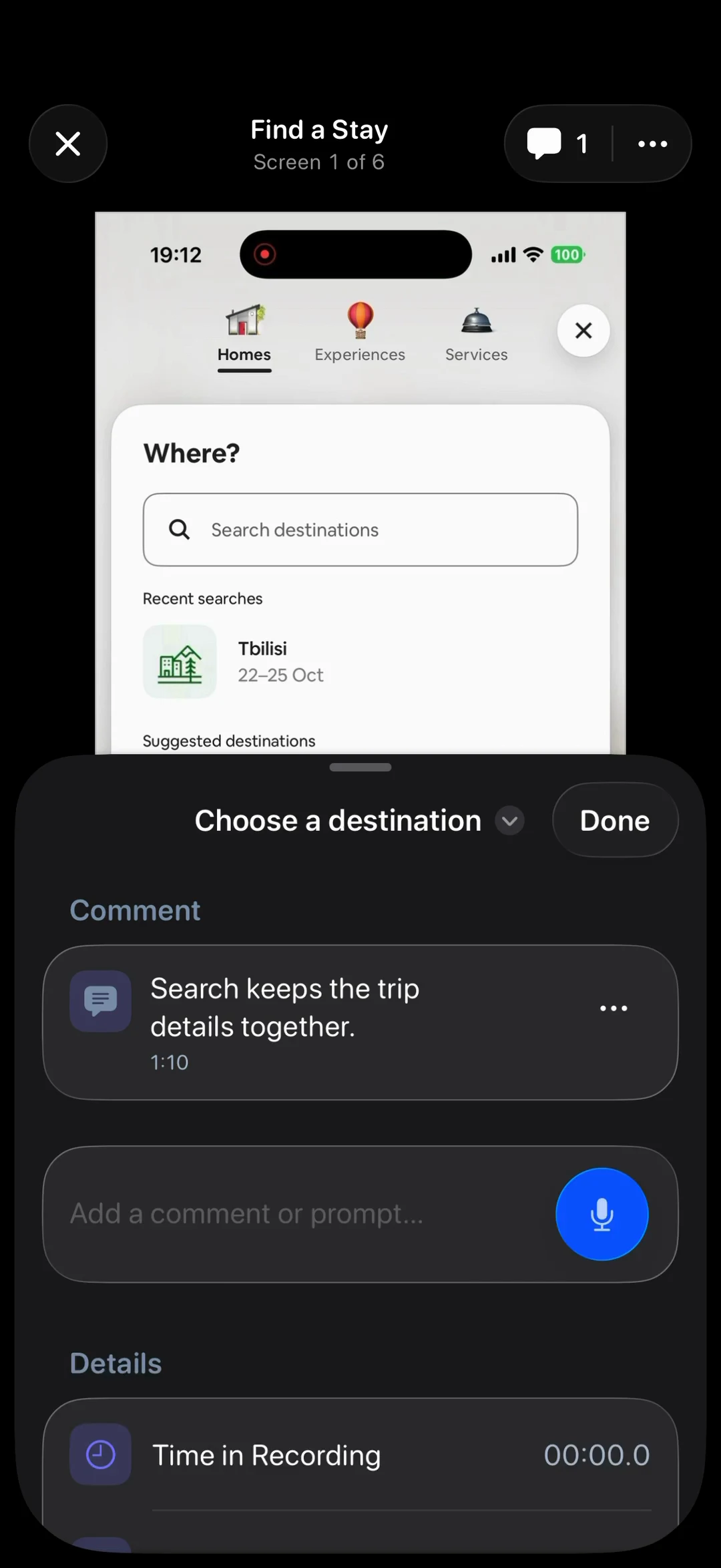
Say it while you see it. Keep each observation beside the screen it explains, with voice notes or text comments.

  • Speak as you record
  • Add text comments
  • Review linked feedback
  • Transcribe when needed
Explore voice comments
Adding contextual comments to a saved screen.
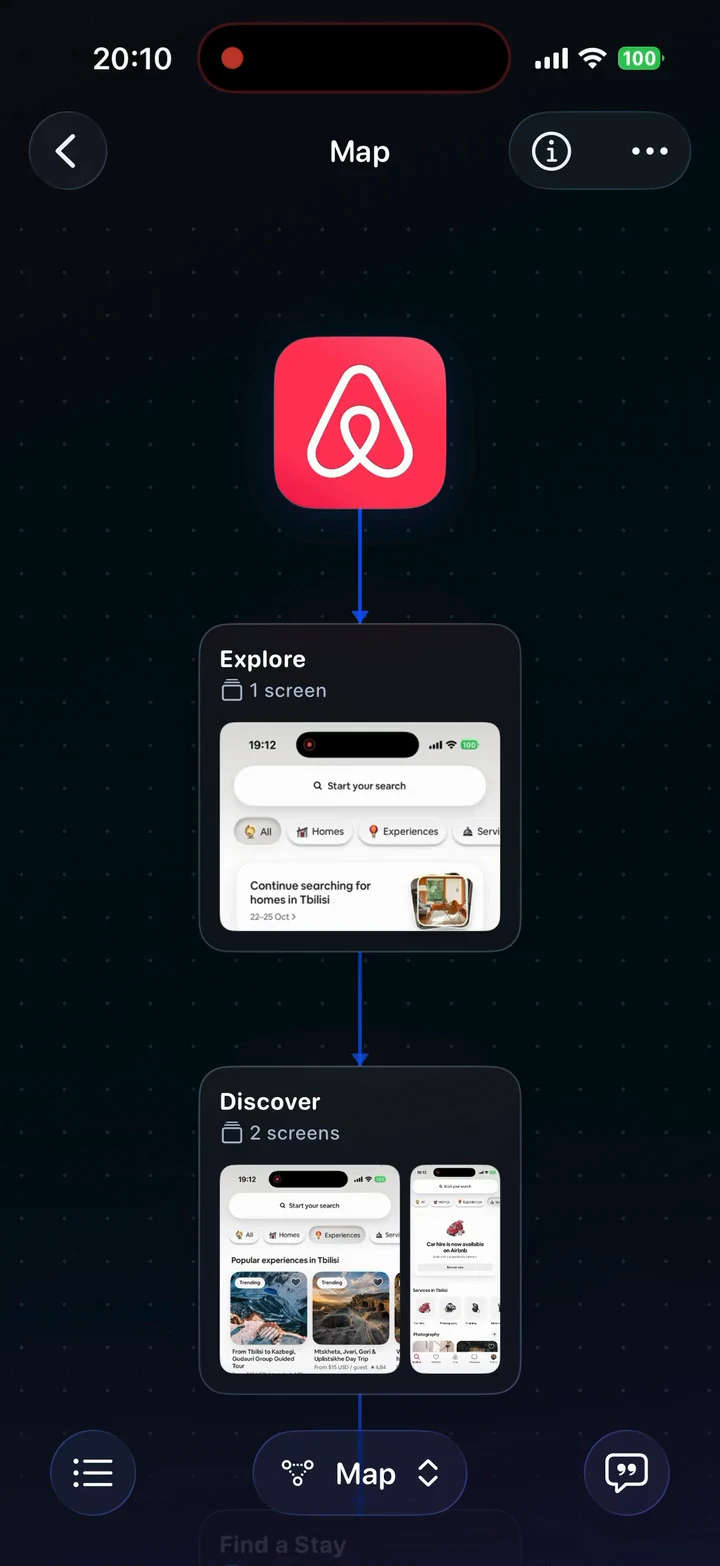
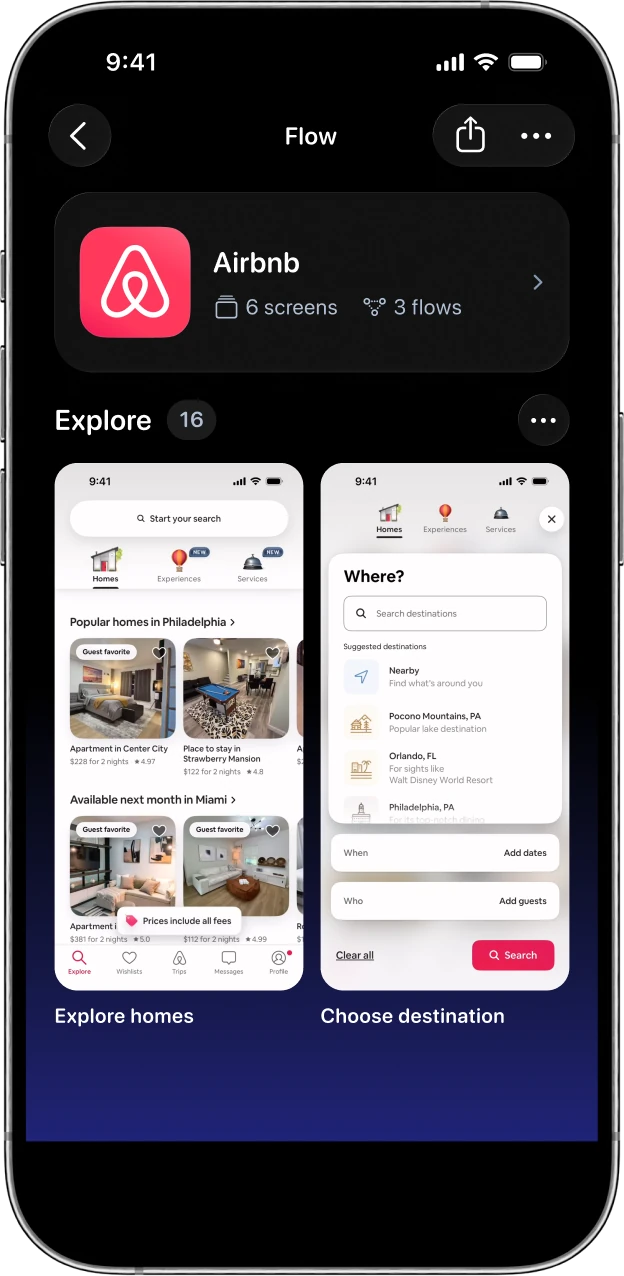
Reviewing the connected steps of an iPhone app journey.

Connect

Every step.
Connected.

See the journey beyond each screen. Connect steps and branches into a map you can follow, review, and share.

  • Link the steps
  • Follow the branches
  • See the whole journey
  • Share a focused flow
Explore the workflow

Keep & compare

Every version.
One flow.

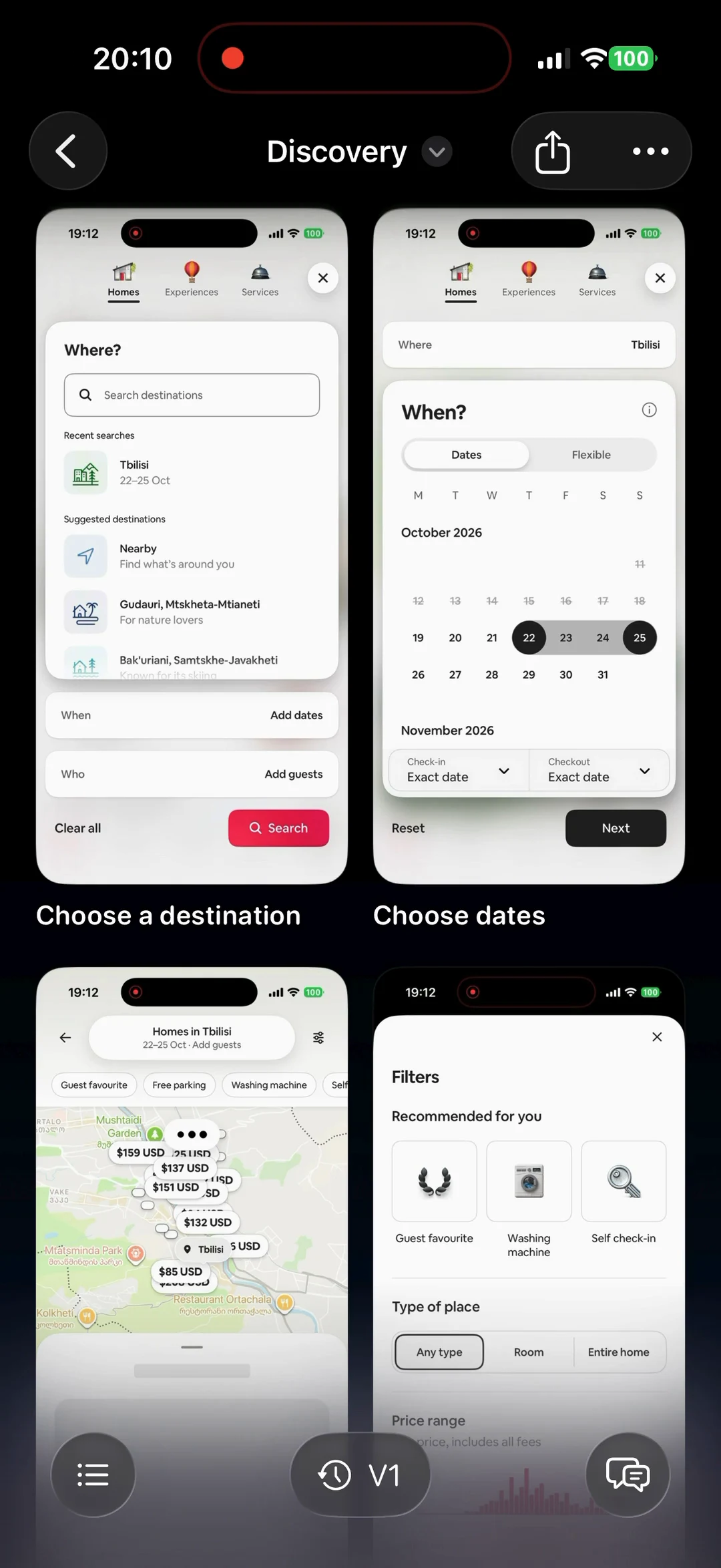
Keep iterations together and revisit what changed. Organize research by app and collection, without losing the journey.

  • Keep versions together
  • Compare useful screens
  • Organize by app
  • Return to your research
Explore your research library
Switching between saved versions of a flow.

HANDOFF

One flow.
Four ways to share.

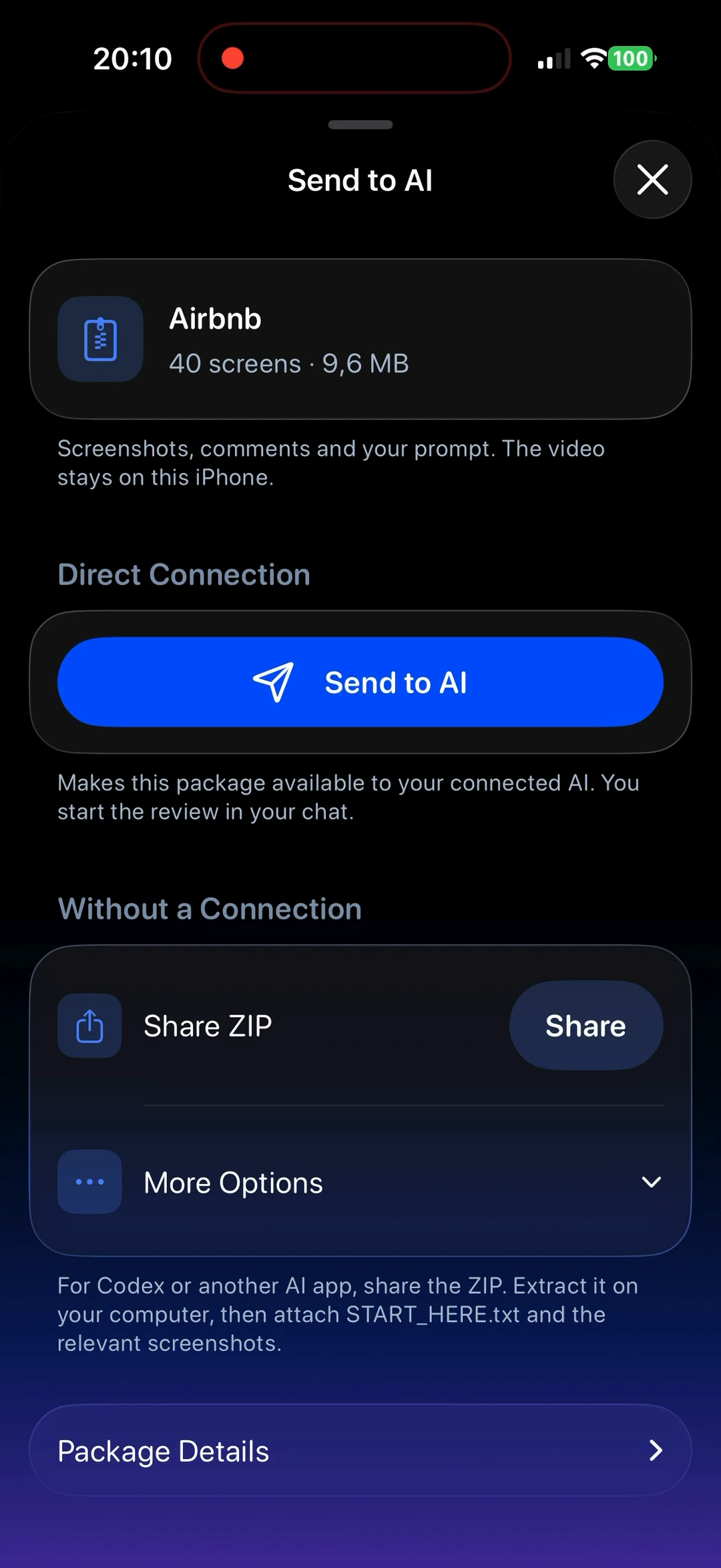
Send selected screens and comments to Claude for feedback. Import screenshots into Figma, or export a ZIP or PDF.

Connect Claude
Sending selected screens and comments from Flow Capture for an AI review.
  • Claude

    Send screens and comments for review.

  • Figma

    Screenshots grouped by flow.

  • ZIP

    Screens, comments, and flow data.

  • PDF

    Selected screens in one document.

GOOD TO KNOW

Questions?
Start here.

A closer look at recording, comments, and sharing your next flow.

Explore the guides
What is Flow Capture?

Flow Capture turns an iPhone app journey into ordered screens and screen-linked comments, so you can review the flow and prepare a useful handoff.

What can I record or import?

Record an iPhone app journey, or import an existing recording or a set of screenshots. iOS or the source app may prevent capture of protected content.

Can I comment with my voice?

Yes. You can narrate during a recording and add text comments to saved screens. New voice notes and cloud transcription depend on your plan and remaining allowance. Review comment placement and transcribe important audio before an AI handoff. Screen recording itself does not use transcription minutes. Read the voice guide.

Does my recording leave the device?

Original recordings and saved projects stay on your iPhone. Screen selection runs locally. If you request voice transcription, comment polishing, direct Figma delivery, or MCP sharing, those optional services send the relevant audio, text, or export data for that action. Offline exports stay local until you share them.

Can I use my screens with Claude?

Yes. Connect Flow Capture to Claude for direct delivery. Claude is the currently supported direct connection. You can also share an AI review ZIP without connecting an AI app. After Send to AI, paste Copy Request into your Claude chat to start the review. Each send is a separate snapshot; it does not update an earlier export. Choose a handoff method.

What can I send to Figma?

The companion plugin is designed to import screenshots as ordered image layers grouped by flow. It does not rebuild an app as native editable UI components. The plugin is being prepared for public release; a public Community download is not yet available.

Can I download Flow Capture now?

The iPhone app and companion Figma plugin are being prepared for public release. Flow Capture is coming soon to the App Store.

Flow Capture app icon

Capture the journey. Keep the context.

Coming soon to the App Store.

Download on the App Store